How to keep true product colour in AI product photos
AI product photos often drift in colour. A how-to: colour references in the brief, a neutral screen, sRGB export and a variant check before delivery.
By Olena, me20 Studio · 3 min read
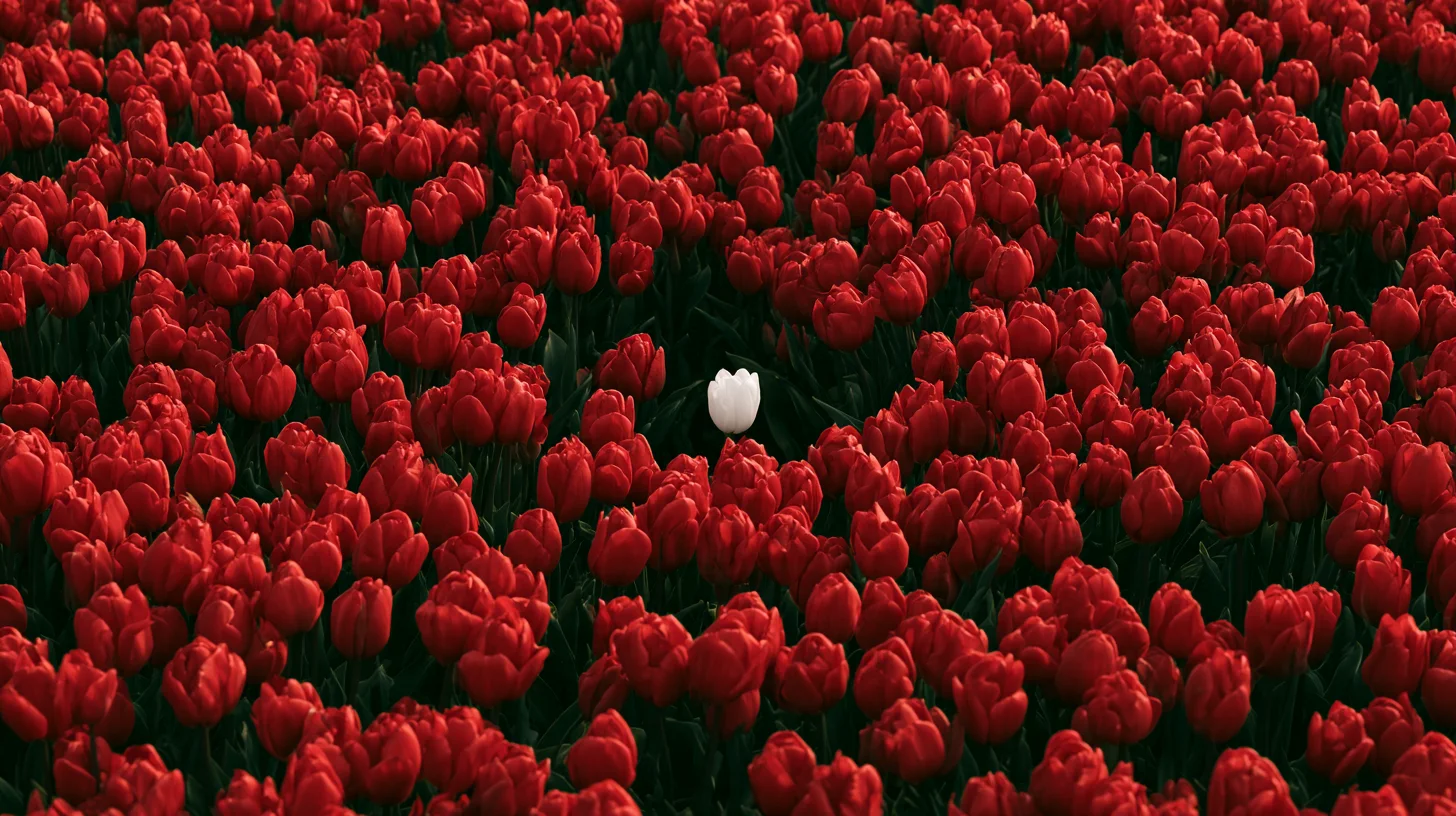
To keep the true product colour in AI product photos, fix the colour before the first prompt and check it again before delivery: put a colour-accurate photo of the real product in the brief, judge results on a neutral screen, export web images in sRGB, and compare every variant with the real item. Here is the routine, step by step.
Why do AI product photos drift in colour?
AI image generators interpret colour from text and references, so a "sage green" bottle can come back olive or mint.
- Words are vague: one person's "navy" is another person's "ink".
- Light in the generated scene tints everything — warm sunset light makes a white box look cream.
- Screens disagree too. Adobe's colour management guide explains that every device works within its own range, or gamut, of colours, and monitors also differ by model and age.
Put a colour reference in the brief
The most reliable colour reference is a photo of the real product taken in neutral daylight, next to something truly white or grey.
- Shoot the product flat-on, without filters, beauty modes or strong shadows.
- Add the brand's colour codes (HEX, RGB or Pantone) if they exist.
- Use the same colour name as on the product page — Google Merchant Center asks for the colour in product data to match the landing page.
Judge colour on a neutral screen
Check results on one calibrated screen, in steady light, with neutral surroundings.
- Adobe's guide notes that the best colour for a viewing room is neutral grey — bright walls and window light change what you see.
- Compare with the reference photo side by side, at the same zoom.
- Fix small shifts in an editor such as Adobe Photoshop rather than re-rolling the whole image and losing a good composition.
Export web images in sRGB
For websites and marketplaces, save the final images in the sRGB colour profile.
- Shopify's help centre explains that it removes the colour profile from uploaded images, and that web browsers assume sRGB when an image has no profile.
- So a file saved in a wider profile can look duller or shifted after upload.
- For print, ask the printer which profile they need — print colour is a separate step.
Check every variant before delivery
Compare each final image with the real product, one colour variant at a time.
- Google Merchant Center asks for a unique image for each variant and for the photo to accurately reflect "the exact color, pattern, finish, and material".
- Show only the variant being sold, not a group shot of all colourways.
- Check the parts AI tends to change: labels, stitching, metal finishes and transparent materials.
More on product visuals: how to brief an AI product photoshoot and what marketplaces allow for AI product photos. See our work in the imagery portfolio. Need product images in true colour? Tell us about your product.
P.S. The caption under the cover image is a ready-to-use prompt. Copy it into Midjourney, Higgsfield or any image generator and make your own version.