Storyboard to AI video: turn a shot list into keyframes
How to turn a storyboard into AI video: one shot per generation, a matching set of start and end frames, and motion-only prompts. A checklist.
By Olena, me20 Studio · 3 min read
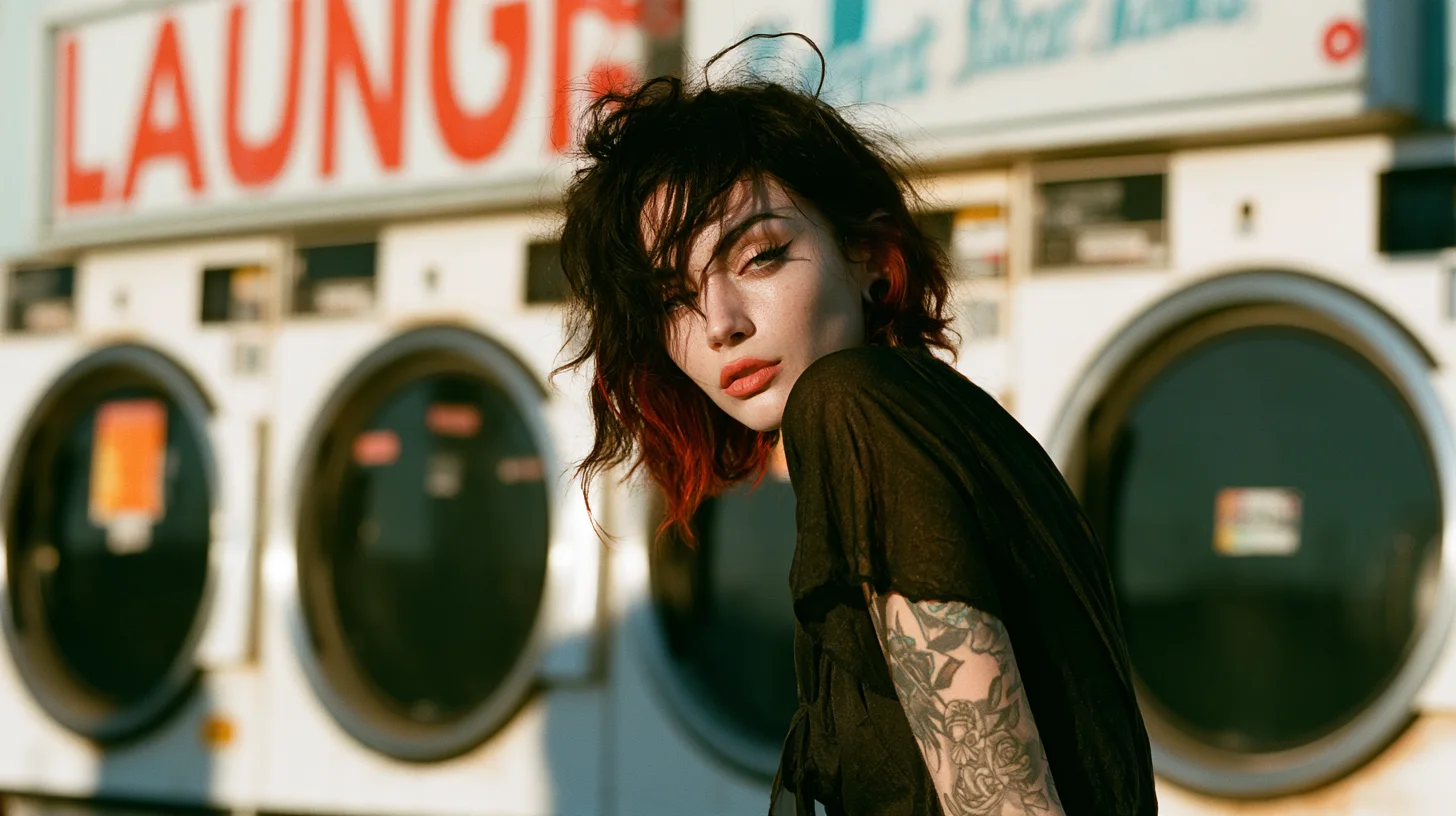
The fastest way from storyboard to AI video is to make the keyframes first: one still image for the start of every shot (and, where needed, one for the end), then ask the video model only for the motion between them. Here is a checklist that turns a shot list into keyframes and keeps a whole ad looking like one film.
A keyframe is the still that fixes how a shot looks
A keyframe is an image the video model must start from — or land on — so composition, product and light are decided before any motion is generated.
- In Runway Gen-4 image-to-video, the uploaded image "acts as the first frame" of the clip.
- Kling and Luma also accept an end frame: two images, and the model generates the transition between them.
Write the shot list before any prompt
Every row of the shot list becomes one generation, so plan it as a table, not as one long prompt.
| Shot | Length | Framing | Camera | Action | Start frame | End frame |
|---|---|---|---|---|---|---|
| 1 | 4 s | wide | slow push-in | model enters the room | yes | — |
| 2 | 3 s | close-up | locked | hand opens the bottle | yes | yes |
| 3 | 3 s | medium | orbit | product turns to the light | yes | — |
Runway's prompting guide recommends one scene per generation, so cut long ideas into short shots and join them in the edit.
Make the keyframes as one family
All keyframes of one film should share the same product, character, light, colour palette and aspect ratio.
- Generate the stills in the final format — Gen-4 follows the closest aspect ratio to your image.
- Reuse the same product photos and character references for every frame.
- Lay the stills side by side before animating: a wrong colour or a different face is easy to spot now.
Start frame only, or start and end frame?
Use only a start frame when the action can go its own way; add an end frame when the shot must land on an exact picture — a logo-free packshot, a final pose, a product in a precise spot.
- Kling's guide: choose two similar images with the same theme for a smooth transition "within 5 seconds"; large differences "may trigger a shot switch".
- Luma's keyframes guide lets you add an optional prompt to guide the transition, such as "transition from sunset to starry night".
- For longer shots, Kling 4.0 supports up to 10 keyframes in one clip (see our Kling 4.0 workflow).
Prompt the motion, not the picture
Once the keyframe sets the look, the text prompt should describe only what moves: the subject, the camera and the scene.
- Runway: the prompt "should be almost entirely focused on describing the desired motion".
- Order it as subject action → camera move → scene motion, and describe the camera positively ("Locked camera").
- Pick camera words from our camera moves glossary.
Checklist before you press Generate
- One row of the shot list = one generation.
- Every shot has a start frame; the last shot has an end frame.
- All stills share product, light, palette and aspect ratio.
- The prompt says what moves, not what it looks like.
- Generate two or three takes per shot and choose in the edit.
See how this looks in finished films in our video work. Planning an AI video for your brand? Tell us about your project.
P.S. The caption under the cover image is a ready-to-use prompt. Copy it into Midjourney, Higgsfield or any image generator and make your own version.