How to upscale AI images for print: pixels, modes, workflow
How many pixels a print needs, why AI images must be upscaled first, and when to choose a faithful or a creative upscaler for posters and packaging.
By Olena, me20 Studio · 3 min read
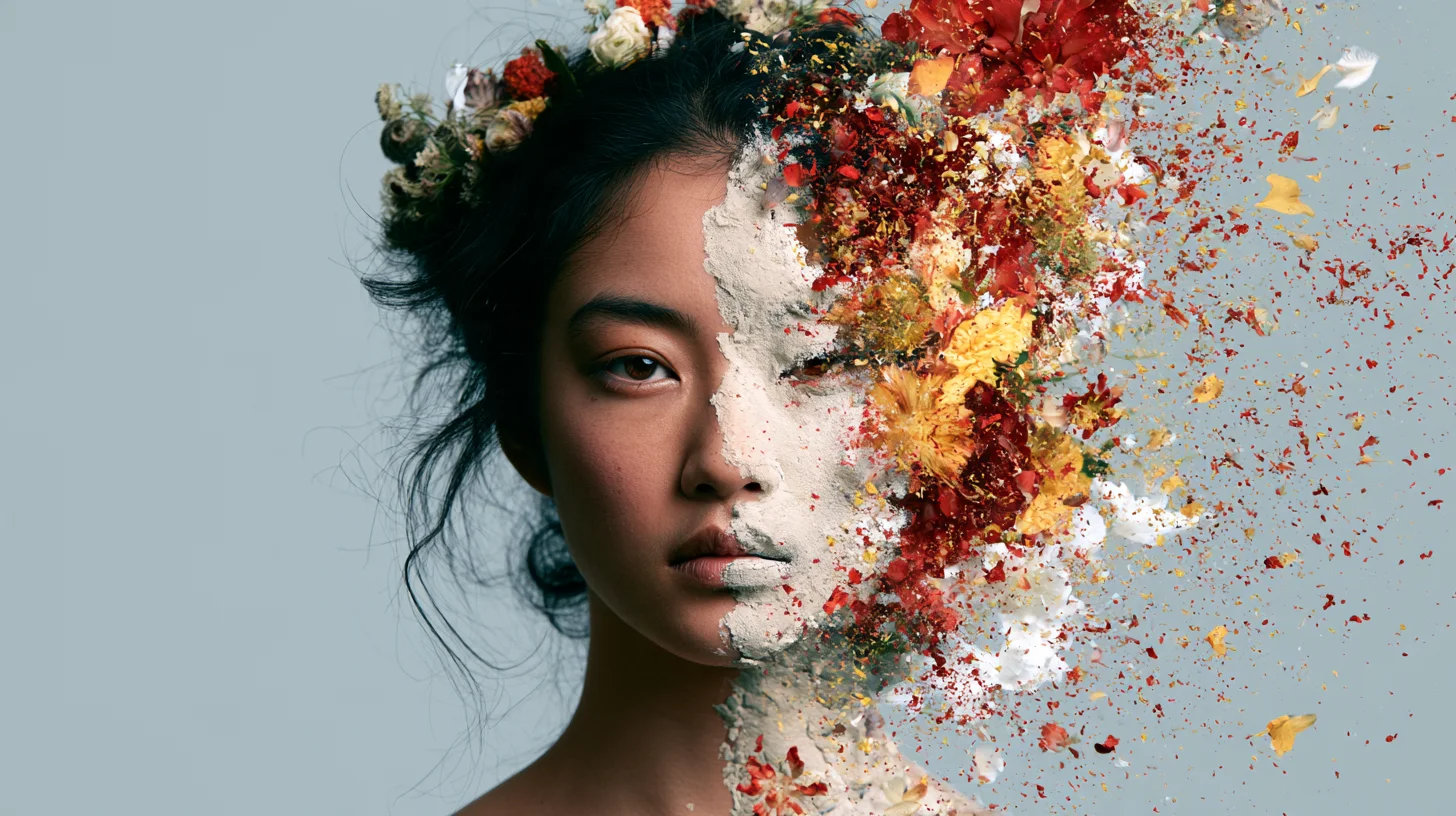
To upscale an AI image for print, first work out how many pixels the print size needs, then enlarge the image with an AI upscaler in a faithful mode, and only then check details at 100% zoom. Most AI images come out screen-sized, so without upscaling a poster or a box will look soft or pixelated.
How many pixels does a print need?
A print needs a fixed number of pixels per inch, so the bigger the print, the more pixels the file must have. Adobe calls 300 DPI the general benchmark for high-quality photos and flyers. Posters can go down to about 100 DPI, depending on size and how far away people stand.
The quick formula: multiply the print size in inches by 300. A 10 × 10 inch print needs 3000 × 3000 pixels. An A3 poster (about 11.7 × 16.5 inches) needs roughly 3500 × 4950 pixels.
Why AI images need upscaling first
AI generators are built for screens, so their files are usually far too small for print. A typical 16:9 image in our own cover library is 1456 × 816 pixels. At 300 DPI that is only about 12 × 7 cm — the size of a postcard photo.
A 4× upscale turns the same file into roughly 5800 × 3300 pixels, enough for a sharp print about 49 cm wide at 300 DPI, or much larger for a poster seen from a distance.
Faithful or creative: choose the right mode
Upscalers can either keep the image exactly as it is or invent new detail, and for print you usually want the first. Magnific shows this clearly with two modes:
- Precision is the faithful mode: "what you put in is what you get out, just bigger and sharper", up to 16×. Magnific recommends it for photos, products and print.
- Creative adds AI-generated detail and textures, with sliders for Creativity, HDR and Resemblance. It is meant for digital art, illustrations and 3D renders.
Topaz Labs Gigapixel takes a model-based approach: Standard for most photos, High Fidelity for images that are already high-resolution, Art & CG for illustrations and computer graphics, Face Recovery for portraits, and Redefine for rebuilding badly degraded images. Its Gigaprint feature can also send the upscaled file straight to a print partner.
A simple print-prep workflow
- Ask the printer for the final size and resolution (and bleed, if it is packaging).
- Generate in the right aspect ratio from the start — see our product photoshoot brief.
- Upscale once to the needed size with a faithful mode; avoid upscaling the same file again and again.
- Zoom to 100% and check edges, text, hands and the product itself.
- Export in the format the printer asks for and order a test print for big runs.
Need campaign images ready for print? Tell us about your project.
P.S. The caption under the cover image is a ready-to-use prompt. Copy it into Midjourney, Higgsfield or any image generator and make your own version.